
Integrating new features into your app or platform can sometimes feel overwhelming, especially when managing authentication, complex workflows, and constantly evolving requirements.
That’s why Prembly’s SDK is designed to make this process smooth and hassle-free.
Our SDK is a complete toolkit built to work seamlessly with your development environment. It simplifies authentication, error handling, and network communication, so you can focus on building great features instead of wrestling with technical details.
In this guide, we’ll walk you step-by-step through how to integrate Prembly’s SDK into your app or platform quickly and confidently, helping you save time and avoid common pitfalls.
Steps on Using the New Prembly SDK (Web, Mobile, Backend)
Step 1: Log In
“Start by logging into your Prembly account.”
Step 2: Open the Checker Widget
“From your dashboard, navigate to Checker Widget, then click on Configuration.”
Step 3: Add a New SDK
“Click on Add New SDK to begin creating your widget.”
Step 4: Choose Setup Method
“You can create your widget using Manual Setup, Templates, or AI.
Step 5: Select SDK Service
“Next, choose the service you want the SDK for—either Data Verification or Document Verification—then click Next.”
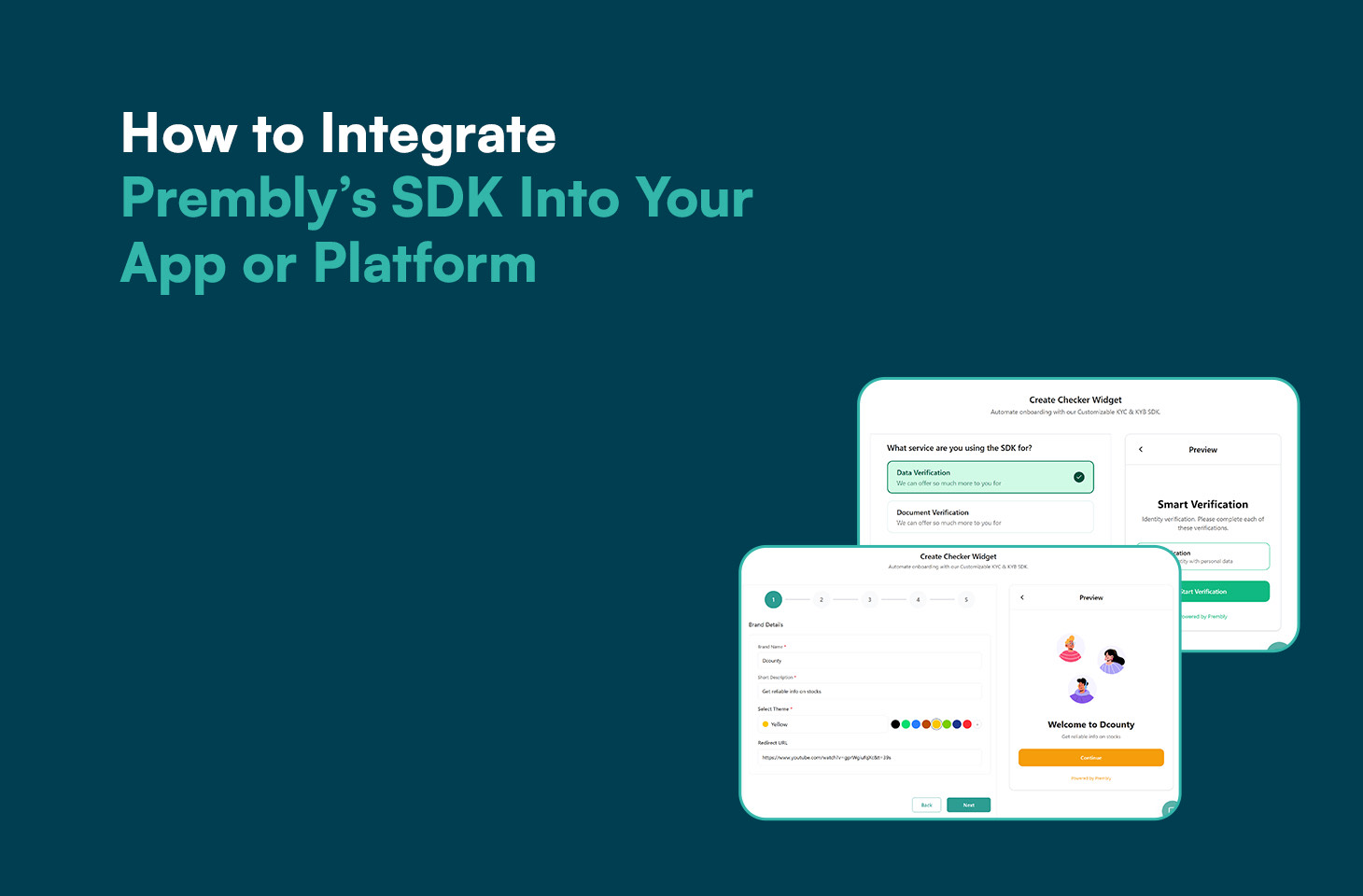
Step 6: Enter Widget Details
“Now enter the required details:
– Brand name
– Short description
– Theme selection
– Redirect URL
Once done, click Next.”
Step 7: Add Channel
“Click on Add Channel, select the country, and choose the appropriate verification endpoint.
Then click Next.”
Step 8: Screening Channel
“You’ll now see the Screening Channel.
You can toggle it on or off, depending on your needs.
Click Next to continue.”
Step 9: Enable Face Scan (Optional)
“Here, you can enable Face Scan, which allows quick and secure identity verification using facial features.
You can also set your preferred face confidence level.
Click Next.”
Step 10: Review Cost Breakdown
“You’ll now see a cost breakdown, including country-specific pricing and the total estimated cost.
Review everything, then click Save Widget.”
Step 11: Test the SDK
“To test your SDK, go back to Configuration, select your SDK, click the three-dot menu on the right, and choose Test SDK.”
Step 12: Run Test & View Integration Details
“You can now run the test, see how the SDK works in real time, and view all the integration details needed for implementation.”