

 Misturat Alausa
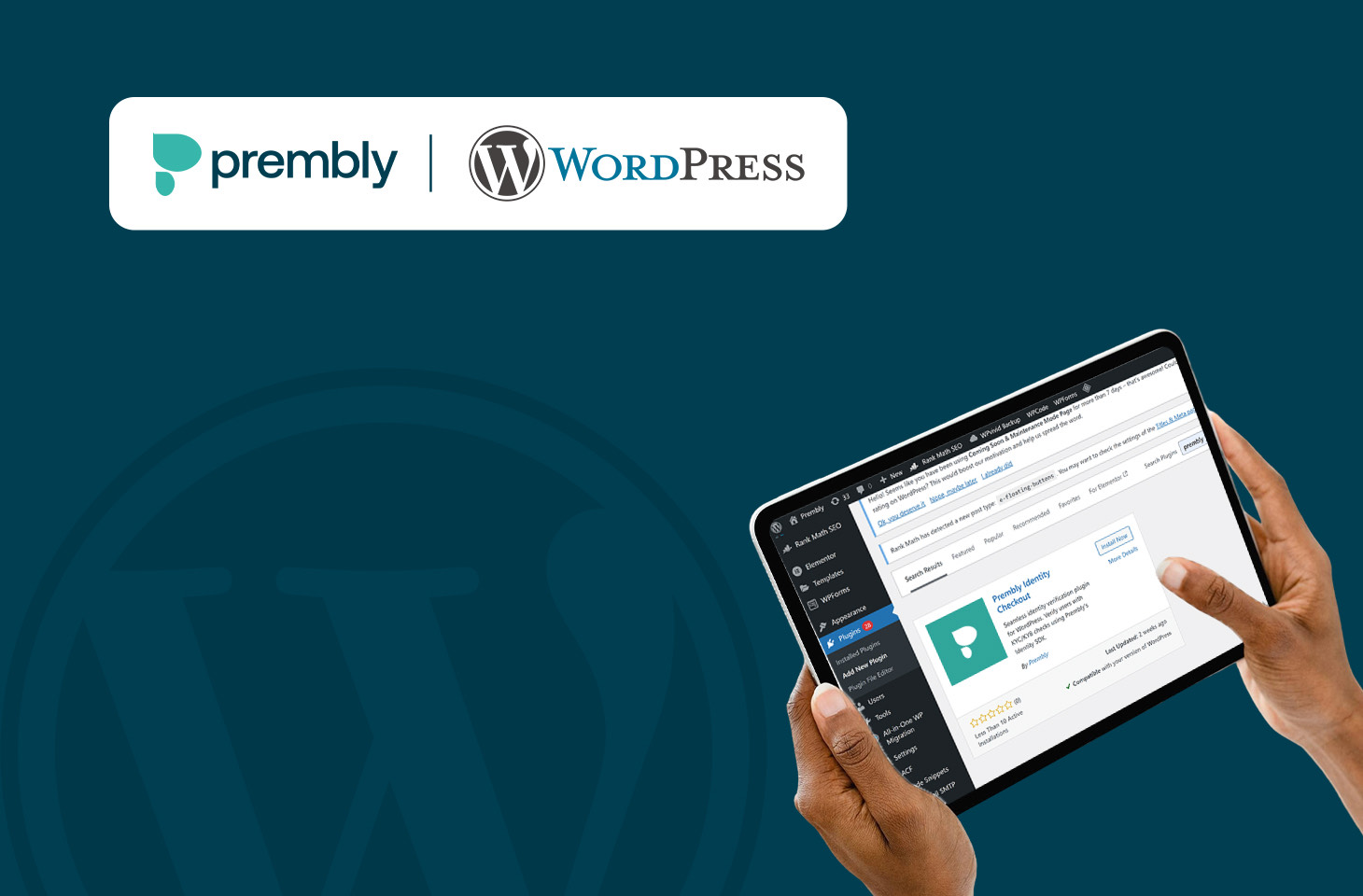
Confirming the identity of your customers is essential for safeguarding your business and building trust. With increasing concerns regarding online security and fraud, businesses need reliable solutions to verify users quickly and seamlessly. That’s why we’re excited to introduce the Prembly Identity Checkout plugin for WordPress.
This powerful plugin lets you integrate Prembly’s trusted digital verification system directly into your WordPress website. With just a few simple steps, you can enhance your onboarding process, reduce fraud risk, and build greater trust with your customers, all without disrupting their user experience.
In this blog, we’ll guide you through how to install and use the Prembly SDK on WordPress so you can start verifying your customers securely and effortlessly.
How to Install and Use the Prembly SDK on WordPress
Part 1: Installing the Prembly Plugin
Once you have access to your WordPress admin dashboard:
- Log in to your WordPress Admin Panel.
- Navigate to Plugins.
- Click Add New, then search for Prembly.
- Install the Prembly plugin.
- After installation, click Activate.
Once activated, Prembly will appear in your WordPress menu.
Part 2: Connecting Your Prembly Account
- Click on Prembly in the WordPress menu.
- Go to the Authorization page.
- Enter your Prembly email address and password to connect your account.
If you do not have a Prembly account yet:
- Click Create Account.
- Complete the signup process on Prembly.
- Return to WordPress and log in using your newly created credentials.
- Click Test Connection to confirm successful authentication.
- This enables WordPress to retrieve your SDKs created on the Prembly dashboard.
Part 3: Managing SDKs
- Go to List Prembly SDKs.
- This will fetch all SDKs associated with your Prembly account.
- You can view the details of each SDK.
If no SDK has been created yet:
- Go to your Prembly Dashboard.
- Follow the steps to create an SDK.
- Return to WordPress once the SDK is created.
- Click Add New SDK Configuration.
- Enter a label for the SDK configuration.
- Select the already-created SDK from the list.
- Click Save Configuration.
Your SDK configuration is now saved.
Part 4: Using and Testing the SDK
- Go to All Configurations and select the SDK you just created.
- Click View Code.
- We recommend using the provided button code, as it allows you to pass user data such as email and first name.
- Copy the button code.
Part 5: Adding the SDK to a Page
- Navigate to the WordPress page where you want the verification to happen.
- Paste the copied SDK button code into the page.
- Save and Preview the page.
You will now see the verification button on the page.
Part 6: Verifying Users with the SDK
- Click the verification button.
- The SDK initializes and redirects the user to the Prembly verification flow.
- Users can:
- Scan the QR code on their mobile device, or
- Continue verification on desktop.
This opens the Prembly SDK interface, where users can complete the verification process, including capturing images or submitting required information.
That’s how you install, configure, and use the Prembly SDK on WordPress to verify users seamlessly.